
Move your portfolio into Hamroshare
Two source brokers, one tracking app. Follow these steps to import your full holdings from either Meroshare or your TMS — your P&L, dividends and tax history will line up automatically.
From Meroshare
Meroshare is the CDSC investor portal — it has every IPO, FPO, right and bonus credit on file. Export the transaction CSV and Hamroshare will reconstruct your portfolio with cost basis.
Sign in to Meroshare
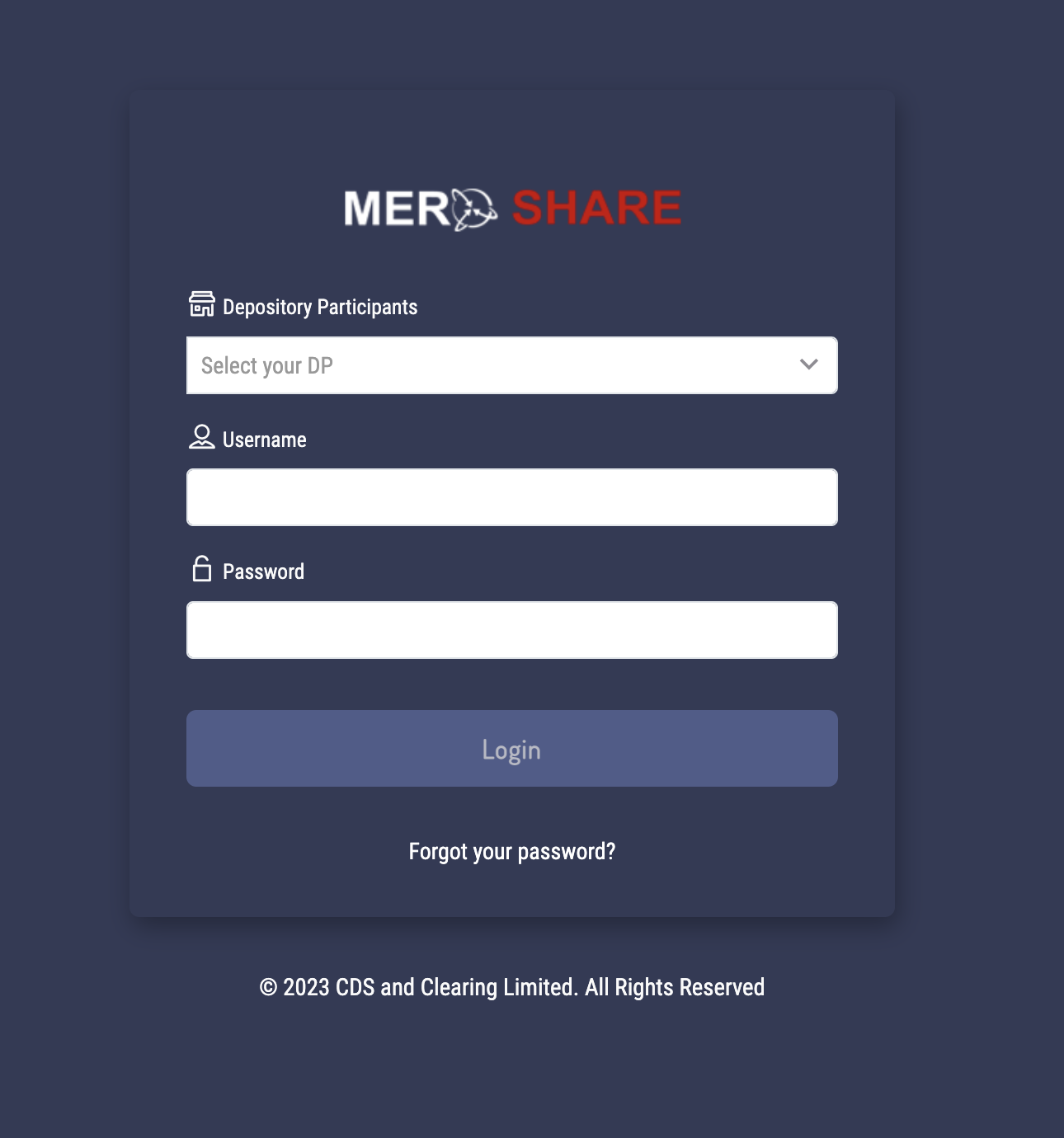
Log in to your Meroshare portal at meroshare.cdsc.com.np with your DP credentials. Make sure your session stays active for the next few steps.
Open Transaction History
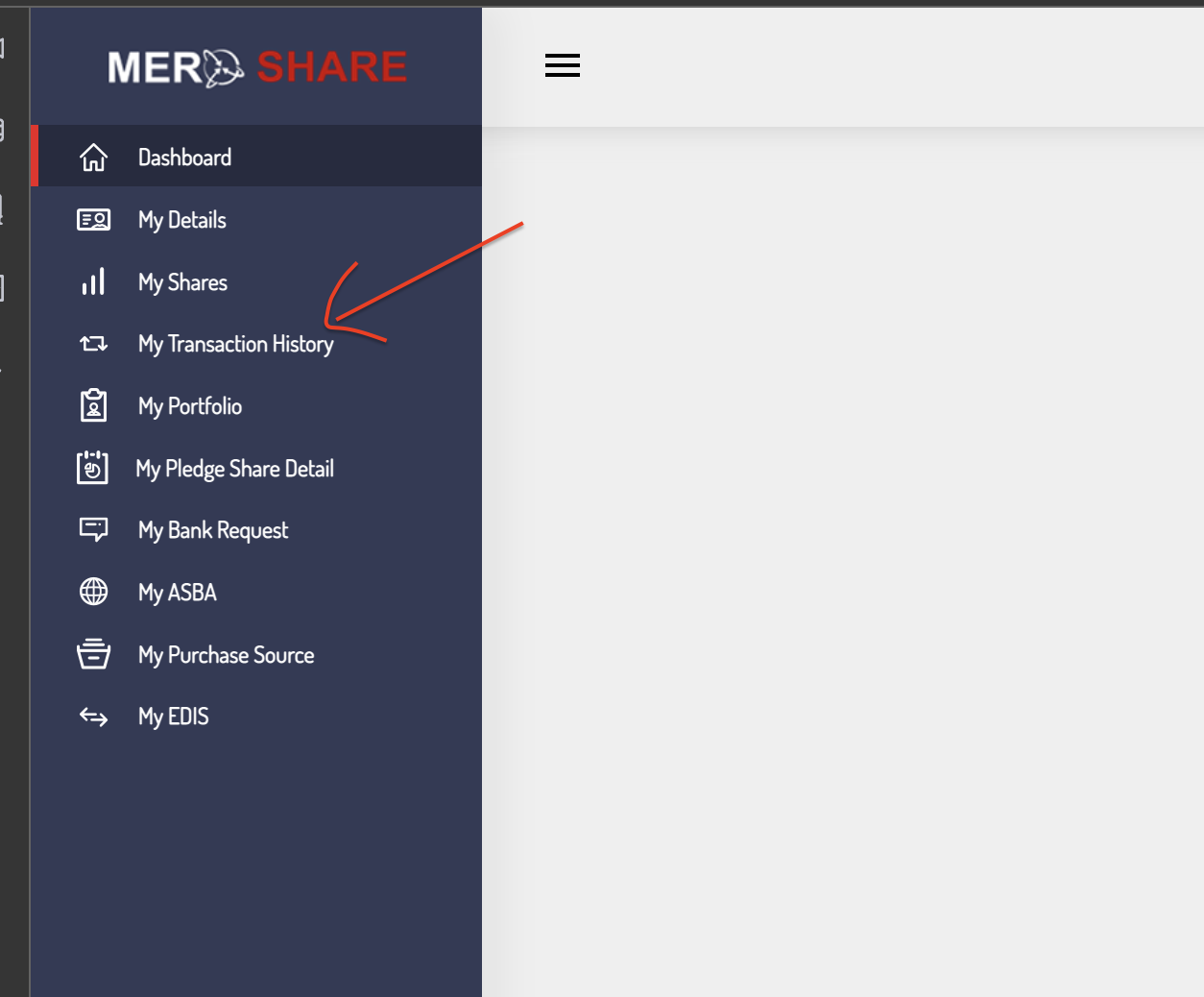
From the left navigation, open “My Transaction History”. This page lists every primary and secondary trade tied to your demat account.
Pick a date range
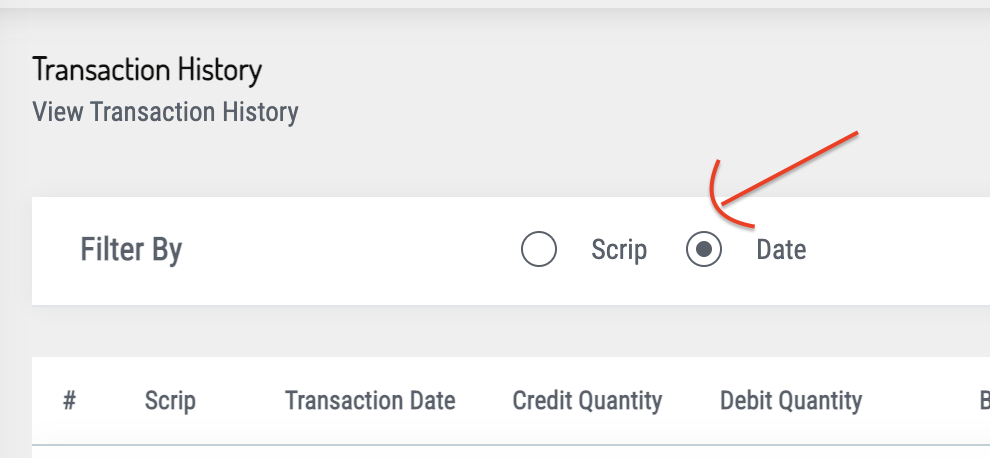
Apply the date filter to scope the transactions you want to import. For a complete portfolio, set From / To to cover your full trading history.
Download the CSV
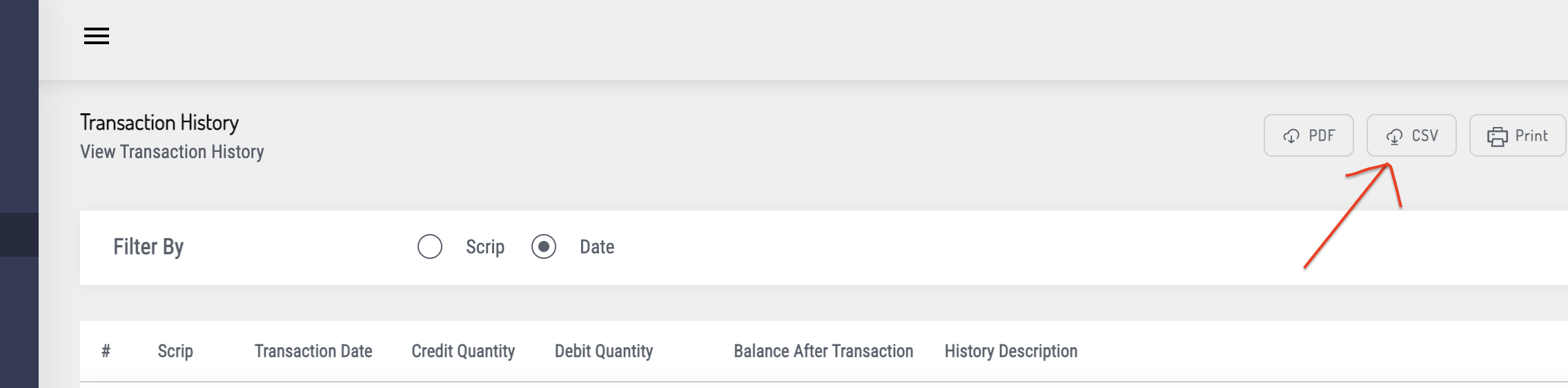
Click the “Download CSV” button in the top-right of the table. Save the file somewhere you'll find again in a moment.
Open Hamroshare → Profile
In the Hamroshare app, open Profile Details and tap “Import from Meroshare” from the action menu.
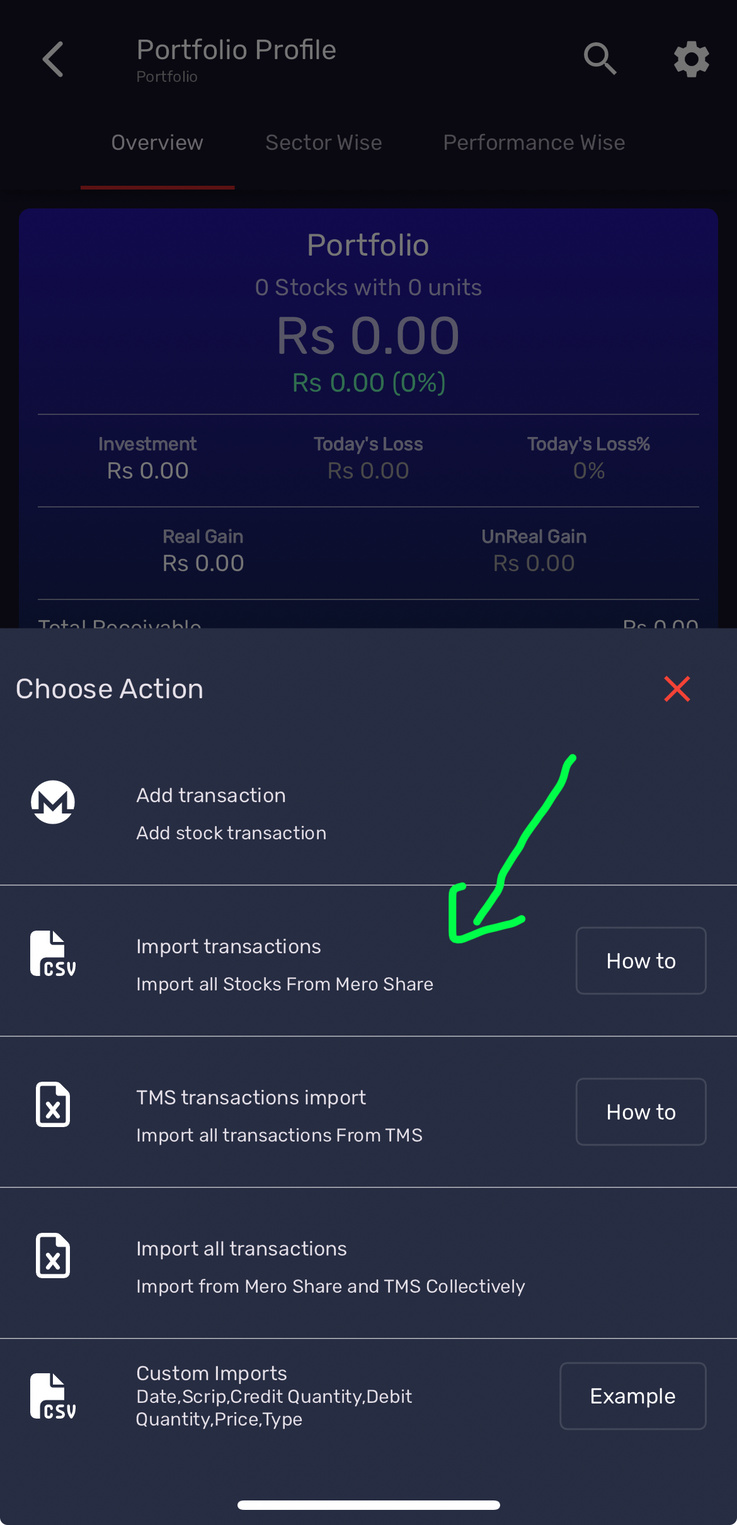
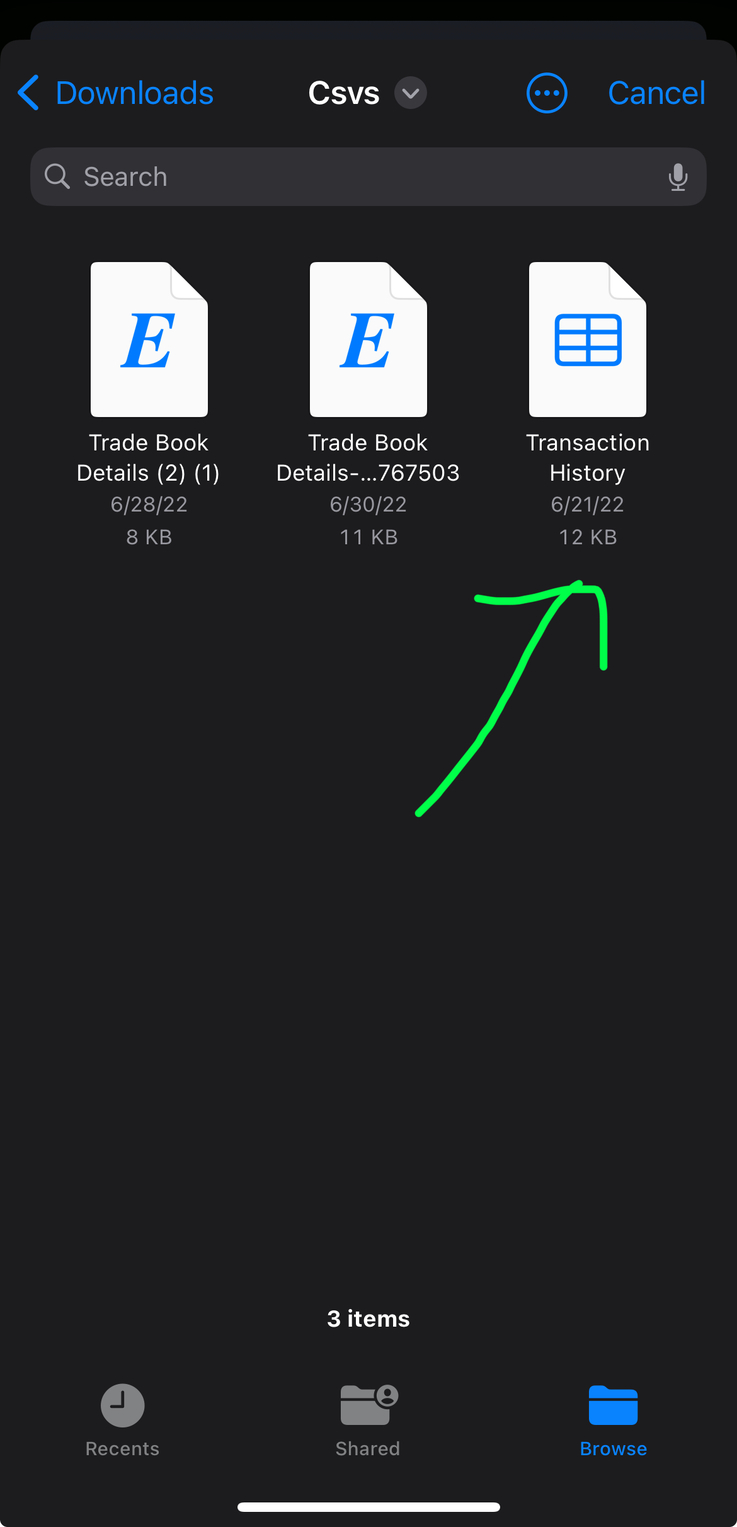
Pick the CSV you just downloaded
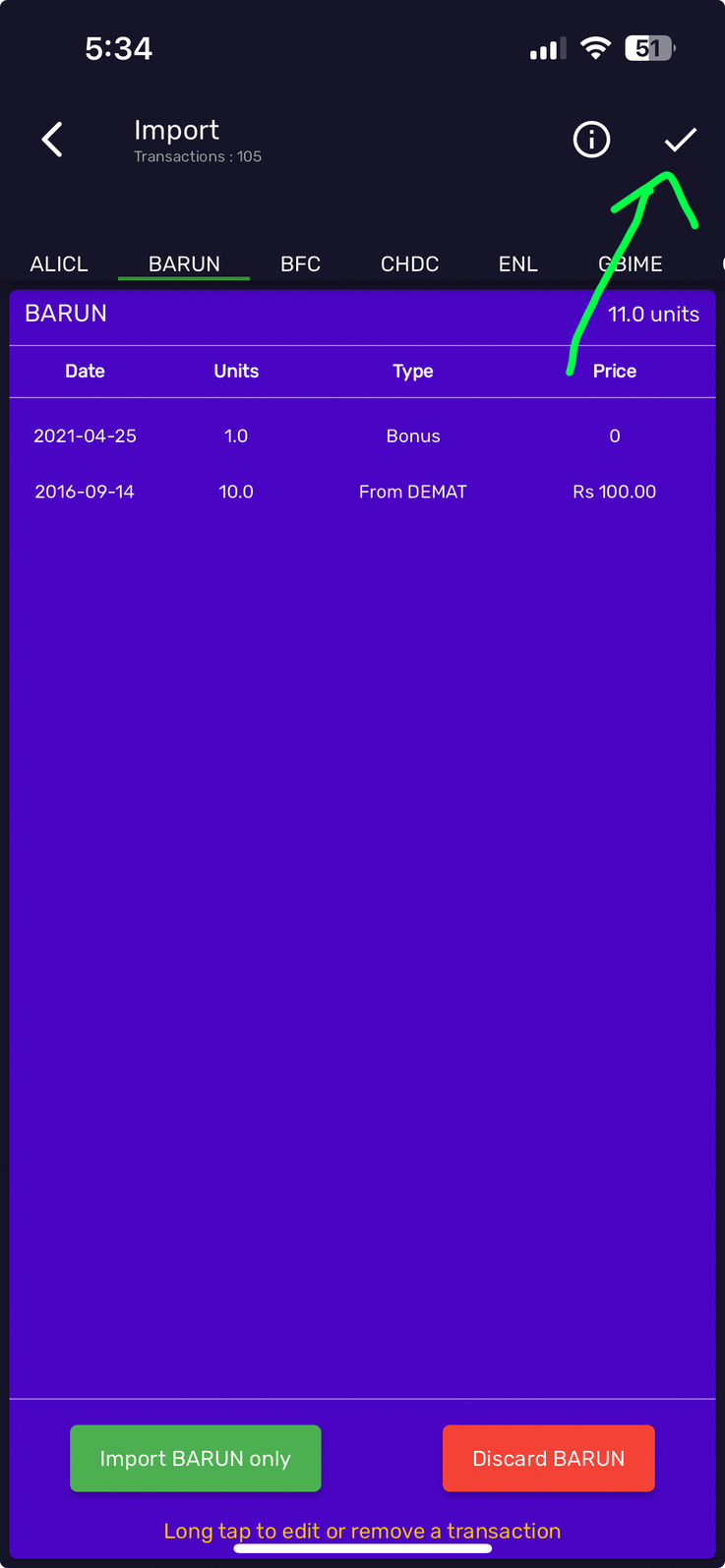
Select the file you saved in step 4. We'll parse every row, group it by symbol, and surface anything we couldn't price automatically.
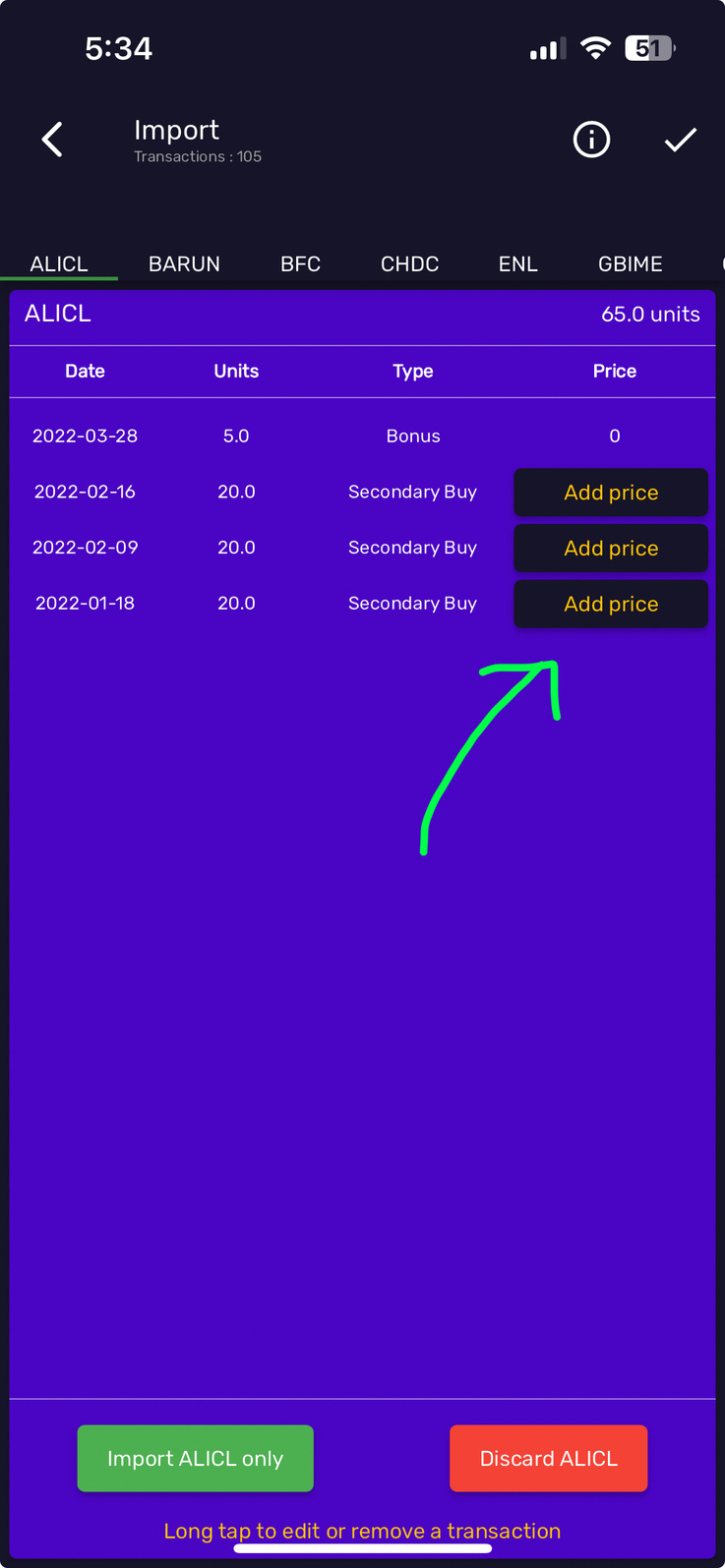
Confirm prices
Most prices auto-fill from the historical NEPSE data. Some Secondary Buys may need a manual price — review the highlighted rows and edit if needed.
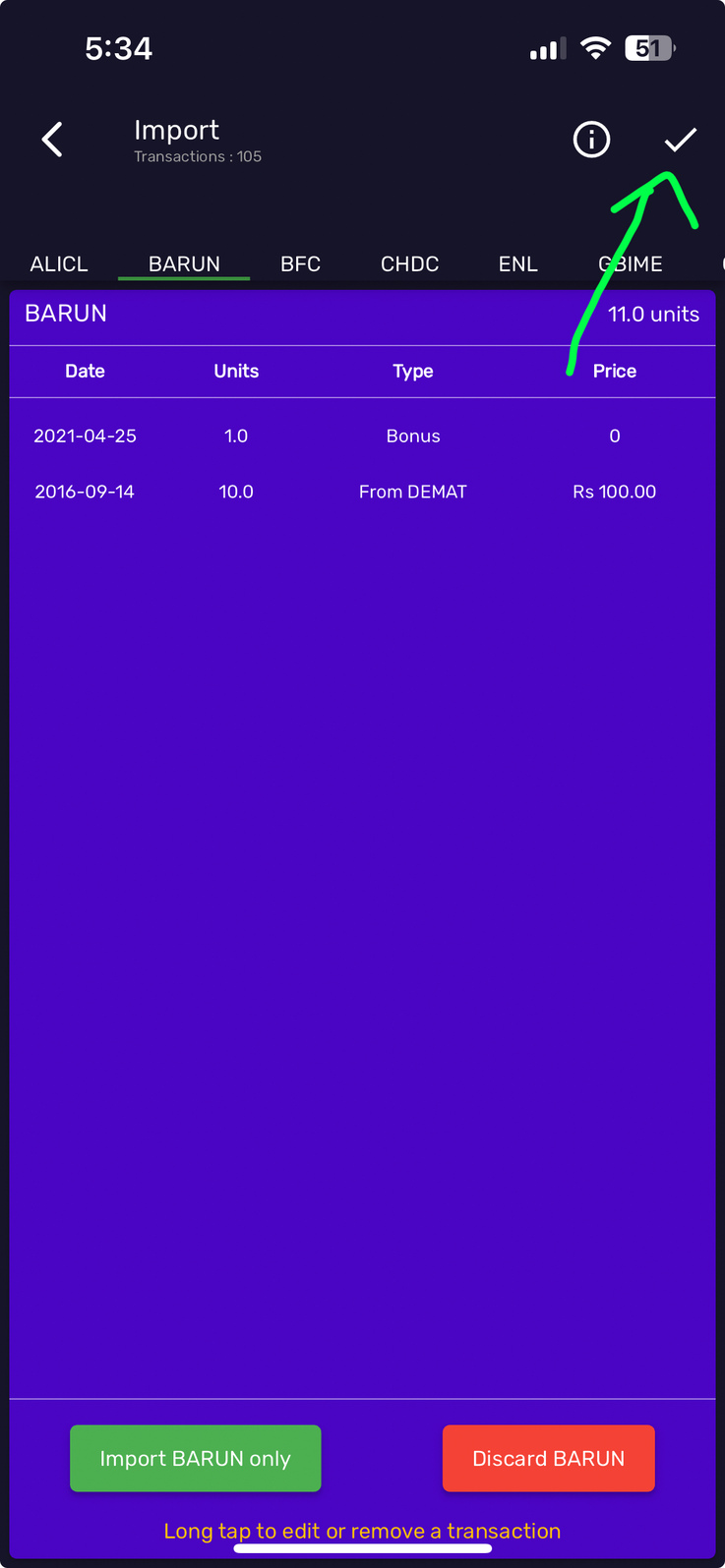
Sync your holdings
Pick the symbols you want to import (or hit Import All) and confirm. Your portfolio is now mirrored inside Hamroshare with full P&L tracking.
From TMS
TMS shows the actual executed trades — useful when your buys are split across multiple brokers or you need finer per-trade detail than Meroshare provides.
Sign in to your TMS
Log in to your broker's TMS portal (tms##.nepsetms.com.np). You need permission to view historical reports — most retail accounts have it by default.
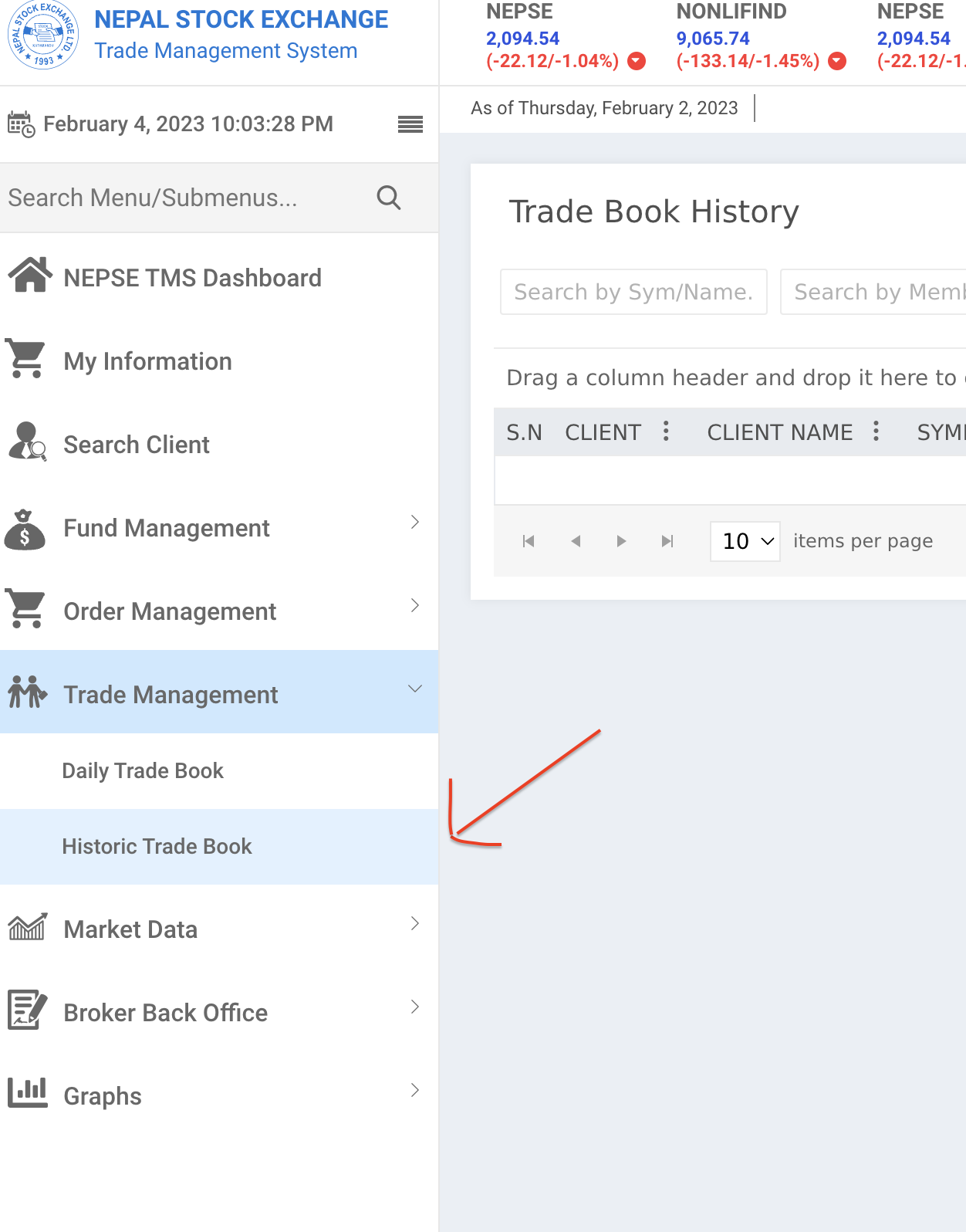
Open the Historic Trade Book
From the Trade Management menu, find “Historic Trade Book”. This is where TMS keeps the full ledger of executed orders.
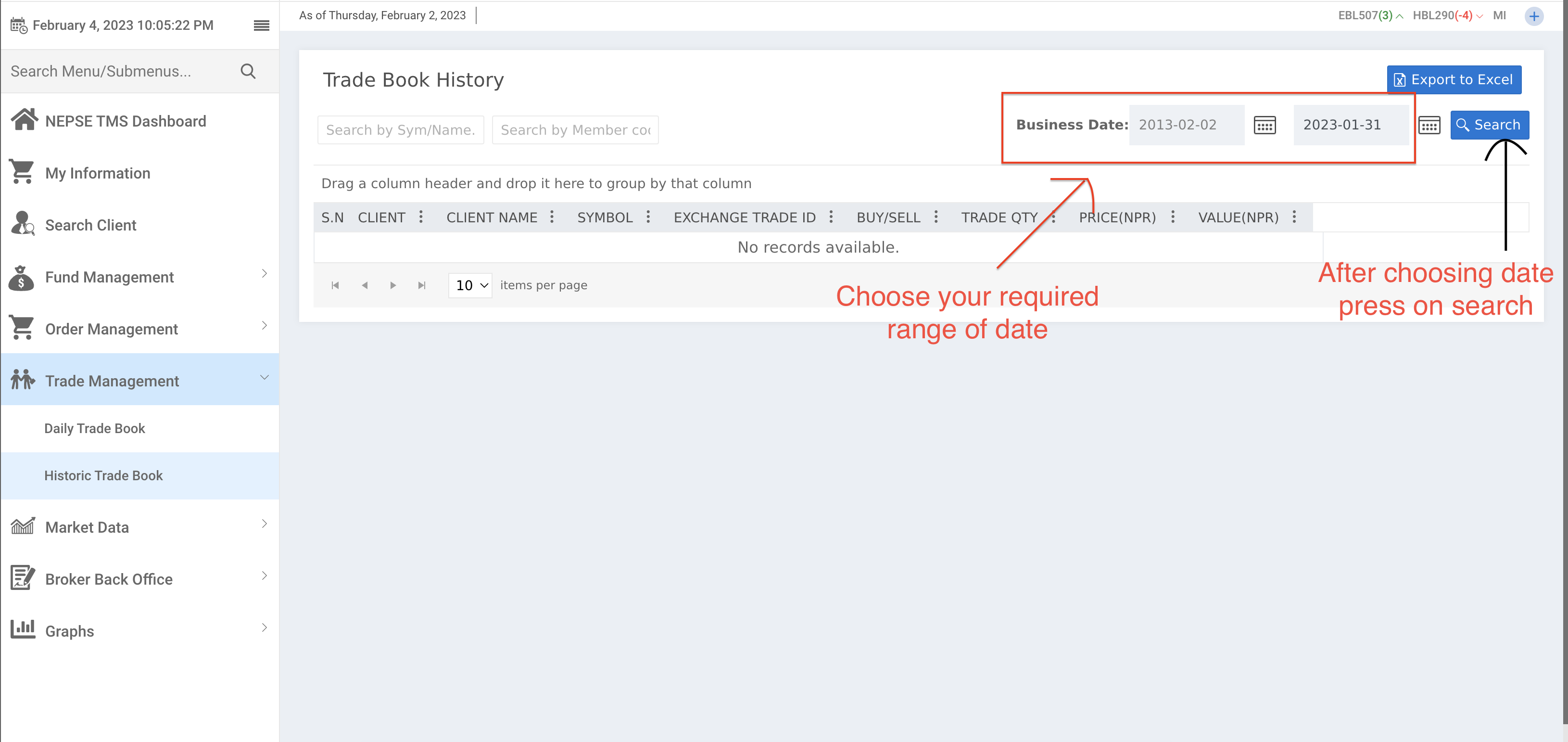
Set the date range
Define the time window you want to import. Match it to your trading start date for the most complete picture.
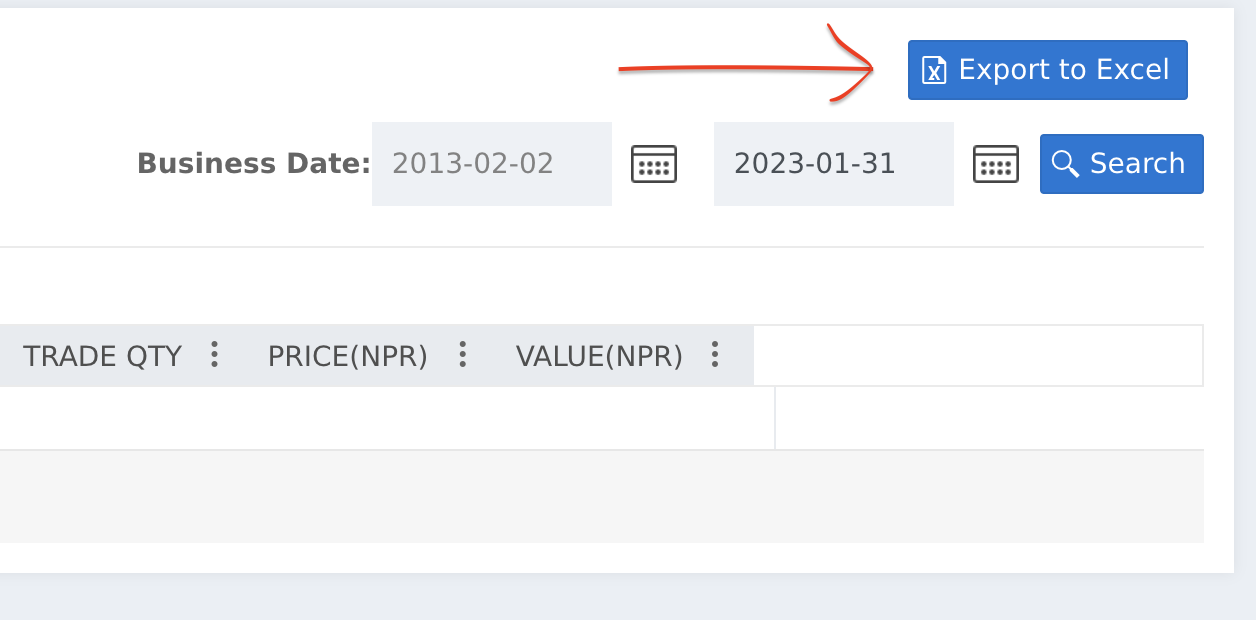
Export to Excel
Run the Search action, then click “Export to Excel”. Save the .xlsx file alongside the Meroshare CSV if you're doing both.
Import in Hamroshare
In Hamroshare, open “Import from TMS” and pick the .xlsx file. You can also hit “Import All” to merge multiple brokers at once.
Stuck on a step?
Send us the screenshot and we'll talk you through it. Most import issues are a date-filter mismatch or a missing column — easy fixes once we can see the file.